
Convert JPG to PES Easily: Step-by-Step Tutorial for Beginners
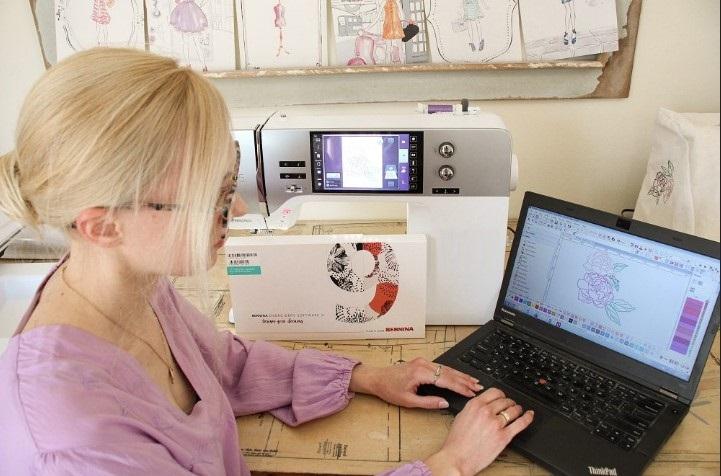
From Phone Photo to Embroidery File in Minutes
You snap a picture of your dog, your kid’s drawing, or a cool logo you found online. You think, this would look amazing stitched onto a sweatshirt or a bag. But then your embroidery machine looks at the file and says no. That is because your machine does not speak the language of photos. It speaks stitches. To get that picture from your phone onto fabric, you need to convert JPG to PES. I remember the first time I tried this. I just renamed the file and got so frustrated when my machine rejected it. Do not make that same mistake. Let me walk you through exactly how this works in plain, simple steps that any beginner can follow.
What Happens When You Convert a Picture to Stitches
Think of a JPG like a mosaic made of tiny colored squares called pixels. Your computer screen loves these squares. Your embroidery needle does not care about squares at all. A PES file, on the other hand, is a set of instructions. It tells your needle exactly where to plunge down, how far to travel, when to pull up, and where to jump to the next spot. It also holds color change commands for multi thread designs.
So when you convert JPG to PES, you are not just changing a file name. You are translating a visual image into a physical path of thread. This process is called digitizing. It sounds fancy, but I promise you can do it today with tools you already have or can get for free.
Why Your Machine Refuses to Read Most Pictures
I hear this complaint all the time from new embroiderers. They load a USB stick full of JPGs, PNGs, or GIFs, and their machine just blinks an error. That is because home embroidery machines, especially popular ones like Brother, Babylock, and Janome, only read native stitch files. PES is the king of those formats. Without a proper conversion, your machine has no idea where to send the needle. It is like handing a French cookbook to someone who only speaks Japanese. The information exists, but the language is wrong.
Method One: The Fastest Online Converter for Lazy Afternoons
Let me show you the easiest route first. No downloads. No confusing settings. Just a web browser and a few clicks.
Open your favorite search engine and look for a free online embroidery converter. I personally like tools from Wilcom or Embrilliance, but even a simple search for "free JPG to PES converter" brings up several solid options.
Upload your picture. Keep it simple for your first try. A cartoon character, a bold company logo, or a black and white line drawing works best. A blurry photo of your cat sleeping in a laundry basket will turn into a stitched mess, trust me on this.
Choose PES as your output format. Some sites ask for your machine brand. Pick Brother or Babylock since both use PES natively.
Click the convert button. Wait about ten seconds. Download your brand new PES file.
Copy that file to a USB drive. Make sure the drive is formatted to FAT32, or your machine might pretend the drive does not exist. Pop the USB into your embroidery machine, select the design, and press start.
The downside of free online tools is that you have almost no control. The software guesses where stitches should go. For simple outlines and big color blocks, that guess is usually fine. For detailed faces or small text, expect some weirdness.
Method Two: Inkscape and InkStitch for Free Desktop Control
Do you want more power without spending a penny? Meet Inkscape. It is a completely free drawing program, and an add on called InkStitch adds embroidery digitizing tools. This method takes a little longer to learn, but you get much cleaner results.
First, download Inkscape from its official website. Then download and install the InkStitch extension. Both are free and work on Windows, Mac, or Linux.
Open Inkscape and drag your JPG right into the blank canvas. Click on your picture and go to Path, then Trace Bitmap. This tool converts your photo into clean vector shapes. Play with the brightness cutoff slider until you see a crisp outline without extra specks.
Once you have a vector shape, select it and go to Extensions, then InkStitch, then Generate. Choose a fill type. Satin works great for borders and letters. Tatami fill works best for large solid areas.
Finally, go to File, Save As, and pick PES from the list of formats. Name your file and save it to your computer.
I like this method because you can see the stitch paths before you sew. You can also adjust stitch length, pull compensation, and underlay. For a free tool, InkStitch is incredibly powerful.
Method Three: Paid Software for People Who Convert Often
If you plan to convert JPG to PES every week, buy proper software. Wilcom Embroidery Studio, Hatch Embroidery, and PE Design lead the market for a reason. They cost real money, but they also offer one click auto digitizing that actually produces decent results.
With most paid programs, you just load your JPG, click an auto digitize button, and the software analyzes edges and colors. It generates a full stitch file in seconds. Then you can manually tweak any areas that look messy. You can change thread colors, adjust stitch density, and add underlay to prevent fabric pull.
Hatch Embroidery offers a free 30 day trial. You can convert dozens of images to PES during that trial without spending a cent. Just remember to cancel before the trial ends if you do not want to buy.
Real World Tips for Clean Stitch Outs
Converting the file is only step one. You also need your machine to actually sew that file without breaking thread or jamming. Here is what I learned after ruining several shirts.
Keep your design simple. Tiny details smaller than a quarter inch turn into blobs of thread. Either remove those details or make them bigger.
Use high contrast images. A black shape on a white background works perfectly. A light pink shape on a cream background confuses the conversion software.
Match your stabilizer to your fabric. Stretchy t shirts need cutaway backing. Stiff caps need heavy weight tearaway. The best PES file in the world will sew badly on the wrong stabilizer.
Always run a test stitch on scrap fabric first. I keep a pile of old jeans and t shirts just for testing. Sewing directly onto your final garment before testing is how you ruin a good hoodie.
What to Do When Your Converted File Looks Wrong
Sometimes you do everything right and the design still sews out poorly. Do not panic. Here are the common fixes.
Your stitches look loose and loopy. Your tension is too low. Tighten your upper thread tension slightly and test again.
Your stitches look like a thick, stiff patch. Your stitch density is too high. Go back to your software and lower the density setting by 15 percent.
Your design has long, annoying thread jumps across empty space. Most software has a trim setting. Turn on automatic trim so your machine cuts those jump threads.
Your letters pull apart and leave gaps. You need more pull compensation. Increase that setting by 0.2 millimeters until the letters close up.
Why You Should Learn This Skill Even With Cheap Designs Online
You can buy thousands of ready made PES files for a couple dollars each. So why bother learning to convert your own? Because those designs are generic. When you convert JPG to PES yourself, you unlock personal projects. A child’s messy finger painting. A screenshot of your own handwriting. A logo for your small business that no one else has. That personal touch is what makes embroidery special.
Your Five Minute Action Plan
Open your browser right now. Find a simple black and white JPG on your computer. Search for a free online converter. Upload that JPG. Click convert. Download the PES file. Copy it to a FAT32 USB drive. Plug it into your embroidery machine. Run a tiny test stitch on a scrap of fabric. See how easy that was?
Conclusion
You do not need to be a tech wizard or spend hundreds of dollars to convert JPG to PES. Free online tools get the job done for simple designs. Inkscape with InkStitch gives you professional control at zero cost. Paid software saves time if you digitize every day. Start with the easiest method today. Pick a simple picture, run it through a free converter, and stitch it out on some old fabric. Your first attempt might not be perfect, but your second will be better. Every time you convert a new picture, you learn something. So go grab that photo from your phone, turn it into stitches, and make something only you can make. Your embroidery machine is ready when you are.

 Thai
Thai
