
The Complete Guide to Convert Logo to BAi Embroidery File Easily
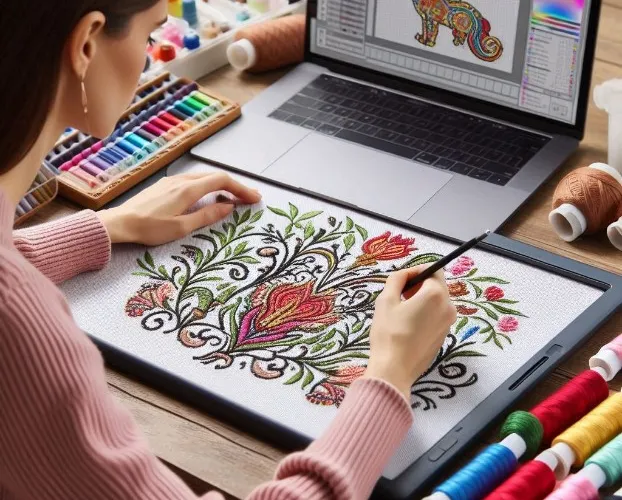
Introduction: Your BAi Machine Is Only as Good as the File You Feed It
You have a BAi embroidery machine. You have a logo you need to stitch. You load the file, hoop your fabric, and hit start. What happens next determines whether you have a productive day or a nightmare of thread nests and bad language. I have watched too many people blame their BAi machine for problems that started with a bad file. The truth is simple. Your BAi is a precision tool that follows instructions exactly. Give it bad instructions, and it gives you bad embroidery. That is why learning to properly Convert Logo to BAi Embroidery File is the most important skill you can develop.
The good news is that converting a logo for your BAi does not have to be complicated. You do not need a degree in digitizing. You do not need to spend thousands on software. You just need a clear path and the right information. Let me walk you through everything you need to know, from understanding what your BAi wants to the easiest ways to get a perfect file every time.
What Your BAi Embroidery Machine Actually Needs
Before you do anything else, let us talk about what your BAi machine is looking for. BAi commercial embroidery machines typically read .DST files. This is the industry standard format for most commercial machines, including Tajima, Barudan, and BAi. Some BAi models might also accept .PES or .EXP, but .DST is your safest bet.
A .DST file contains stitch-by-stitch instructions. Move the hoop left two millimeters. Punch the needle. Move right one millimeter. Punch again. Change thread color. Trim. That is all the file really is, a long list of tiny commands.
Here is the critical point. You cannot just take a JPEG or PNG and rename it to .DST. That does nothing. A proper .DST file must be created through a process called digitizing, where someone translates your artwork into those stitch commands. A bad digitizing job creates a .DST file that technically loads but sews out terribly.
Your BAi also cares about the fabric you are using. A file digitized for a stiff cotton tote will sew horribly on a stretchy performance polo. The pull compensation will be wrong. The underlay will be too light. The density will either pucker or sink. You need to match the file to the fabric.
Three Paths to a BAi-Ready File. Pick Your Adventure.
You have three ways to turn your logo into a BAi embroidery file. Let me break down each one honestly.
Path one is learn to digitize yourself. You buy software like Hatch Embroidery (around one thousand dollars) or Wilcom (several thousand). You spend weeks or months learning stitch angles, pull compensation, underlay types, and density settings. You practice on simple designs before working your way up to complex logos. This path makes sense if you plan to digitize logos every single day for years. For everyone else, it is overkill.
Path two is use auto-digitizing software. Programs like SewArt or the auto-digitize feature in Embrilliance promise one-click conversion. Here is the truth. Auto-digitizing works for extremely simple designs with bold shapes and no small text. For anything with curves, overlapping elements, or text under half an inch, auto-digitizing produces files that break threads, pucker fabric, and look amateur. You will spend more time fixing problems than you save.
Path three is hire a professional digitizing service. This is what most BAi owners should do. You pay fifteen to forty dollars per logo. You upload your artwork and tell them your fabric and desired size. They send you back a .DST file that works on the first test sew-out. You save hours of learning and frustration. The math is simple. Your time is worth more than forty dollars an hour.
The Easy Step-by-Step Process Using a Digitizing Service
Let me walk you through exactly how to get a perfect BAi file with zero stress.
First, gather your logo artwork. Vector files like .AI, .EPS, or .SVG are best because they have clean edges. High-resolution .PNG or .JPG files at 300 DPI work fine too. Avoid tiny web graphics or blurry photos. If your logo looks bad on your screen, it will stitch out even worse.
Second, find a reputable digitizing service. Look for one that asks about your machine type and fabric. If the order form does not ask what fabric you are sewing onto, keep looking. Fabric-specific digitizing is essential for good results.
Third, upload your artwork and fill out the order form. Tell them your BAi model. Tell them the exact fabric, such as cotton pique polo, 100 percent cotton t-shirt, structured cap, or fleece jacket. Tell them the finished size in inches or millimeters. Tell them your thread brand if you have a preference. More details mean a better file.
Fourth, wait for your file. Standard turnaround is twenty-four to forty-eight hours. Rush options exist for an extra fee, sometimes as fast as four hours. Most services email you a download link and often a preview image showing the stitch paths.
Fifth, run a test on scrap fabric. This step is non-negotiable. Hoop a piece of fabric identical to your final garment. Use the same stabilizer. Thread your BAi with the same thread you plan to use for production. Run the design at normal speed.
Watch closely. Does the design sew cleanly with no thread breaks? Great, you are ready for production. Do you see puckering, thread breaks, or gaps between colors? Take a photo and email the digitizing service. A good service offers free edits until you are happy. Do not settle for a file that sews poorly.
Understanding the Key Settings for BAi Success
Even if you hire a digitizer, understanding these settings helps you communicate better and spot potential issues.
Pull compensation is extra width added to shapes. When a needle punches into fabric, it pushes fibers aside. Those fibers spring back slightly, making the stitched design smaller than the digital shape. Pull compensation counteracts this. For a BAi on medium cotton, expect around 0.3 to 0.4 millimeters of compensation. For stretchy fabrics, up to 0.6 millimeters. For caps, only 0.2 millimeters.
Underlay is the foundation stitches that stabilize your fabric. Too little underlay on a stretchy knit, and your top stitches sink into the fabric. Too much underlay on a stiff cap, and the fabric ripples. BAi machines respond well to a combination of edge run and zigzag underlay for most fabrics. For caps, add a center run. For fleece, increase zigzag density.
Stitch density controls how close stitches sit to each other. Standard density for a BAi on cotton is around 0.4 millimeters between rows. For fleece, increase density by 15 to 20 percent so the thread does not disappear into the fuzz. For caps, decrease density slightly because the curved surface handles fewer stitches better.
Stitch angles matter more than you think. Satin stitches on text should run perpendicular to the letter strokes. Horizontal stitches on a vertical letter bar will slip off the edges and look bad. A good digitizer knows these angle rules by heart.
Common BAi Conversion Mistakes to Avoid
Let me save you from the errors I see BAi owners make over and over.
Using the wrong file format. Some BAi owners try to load .PES or .EXP files and wonder why the machine gives an error. Check your manual, but .DST is the safest choice for most BAi commercial machines.
No pull compensation for your fabric. This is the number one cause of designs that stitch out smaller than expected. A logo digitized for a stiff fabric will look skinny on a stretchy knit. Always tell your digitizer your exact fabric.
Underlay that is too light. On fabrics like fleece or pique knits, light underlay lets the top stitches sink into the valleys. The design looks washed out and lacks definition. A proper underlay has both edge runs and zigzag fills.
Forgetting to convert text to outlines. If you send a digitizer a logo with live text and they do not have your exact font, their software substitutes a different font. The resulting embroidery has the wrong letter shapes. Always outline your text before sending.
Running production without testing. One test sew-out on scrap fabric takes ten minutes. Fixing a ruined batch of twenty shirts takes hours. Test first. Always.
How to Find a Reliable Digitizing Service for Your BAi
Not all digitizing services understand BAi machines specifically. Here is how to find one that does.
Ask about their experience with BAi. A good service has digitized for BAi machines before and knows their specific quirks. If they hesitate or give vague answers, move on.
Check their order form. Does it ask for machine brand and model? Does it ask for fabric type? Does it ask for finished size? A detailed order form suggests a professional operation.
Look for reviews from BAi owners. Search for the service name plus BAi or embroidery machine. Real customer reviews from people using similar equipment are worth more than generic testimonials.
Test them with a simple logo first. Before you send your complex, high-stakes design, try a small test order. A simple one-color logo for fifteen dollars tells you everything you need to know about their quality, turnaround, and customer service.
The Cost of BAi Logo Conversion
Pricing varies by complexity. Here is a realistic breakdown.
A simple logo with one or two colors, bold shapes, and no small text runs fifteen to twenty dollars. A medium logo with three to five colors, some text, and moderate detail runs twenty to thirty-five dollars. A complex logo with six or more colors, small text under a quarter inch, or detailed mascots runs forty to sixty dollars.
Rush fees add another ten to twenty dollars for faster delivery. Free edits are standard within the first week. Some services offer a free test sew-out for new customers.
Compare that to buying digitizing software. Hatch costs one thousand dollars. You would need to convert twenty-five to fifty logos just to break even on software. For most BAi owners, hiring a service is far more economical.
Conclusion: You Have Better Things to Do Than Fight With Files
Your BAi embroidery machine is a workhorse. It can run for hours, punch through tough materials, and produce beautiful, professional embroidery. But it needs clean, correctly formatted files to do its job.
Converting a logo to a BAi embroidery file does not have to be a battle. You can learn to digitize yourself if you have the time and patience. You can gamble on auto-digitizing if your logo is very simple. Or you can do what most smart BAi owners do and hire a professional digitizing service.
The professional path takes ten minutes of your time and twenty to forty dollars of your money. You get a file that works on the first test. You save hours of frustration. You protect your thread, your fabric, and your sanity.
So next time you have a logo to stitch for your BAi, skip the headache. Gather your artwork. Find a trusted digitizer. Provide your fabric details. Run a quick test. Then watch your BAi lay down those perfect stitches exactly where you told them to go. That is the feeling of working smart. Now go make something beautiful.
 English
